
You upload your résumé and still have to type your name, phone number and LinkedIn URL. Then you open another job application and see the same fields. Those details are easy to reuse, while questions about your experience still deserve a fresh answer.
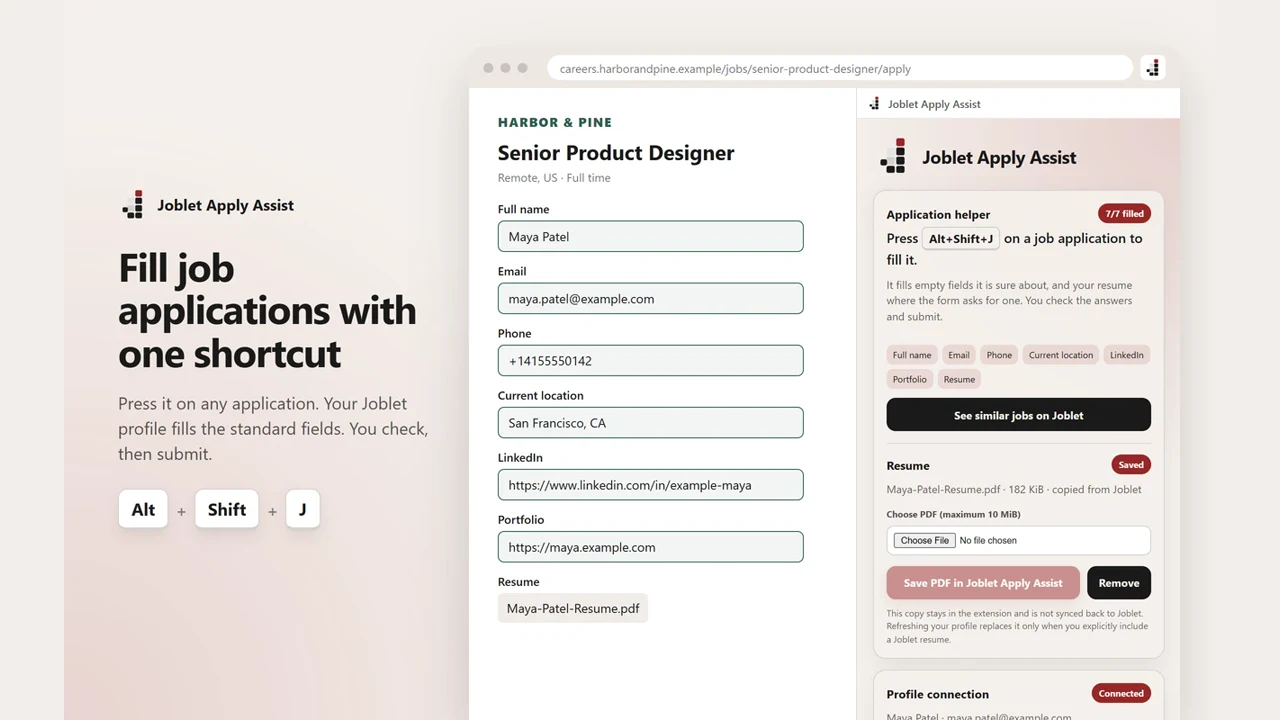
Joblet Apply Assist is a free Chrome extension that fills recognized, empty job application fields from your saved Joblet profile. Connect your profile once, then use a keyboard shortcut on the employer’s form. You review the results, answer the employer’s questions and submit the application yourself.
Set up Apply Assist in Chrome
To try it on your computer, open Joblet Apply Assist in the Chrome Web Store.
- Select Add to Chrome. In the setup tab, sign in to Joblet with a verified email and connect your profile.
- Check the details you want to reuse, especially your phone number, current location and LinkedIn or portfolio URL.
- On the practice application, press Alt + Shift + J, or Option + Shift + J on a Mac. See which fields fill and which ones are left for you.
Reading on your phone? You can send the install link to your computer from the Apply Assist page.
Use the shortcut on an employer’s application
Open the page with the application fields, then press the shortcut. Chrome’s side panel shows what Apply Assist filled. On a typical form, that might be your name, email, phone number, location and profile links. Anything you already typed stays in place.
For example, say you’ve already entered a different contact email for one employer. Apply Assist leaves that address as you entered it and can fill the empty phone and portfolio fields from your saved details.
If the employer embeds a supported hiring form, the side panel may show Allow form access. Chrome names the site in its prompt. You can approve access for that site or complete the form by hand.
Check what the employer will receive
- Contact details. Check your email, phone and location. Open your portfolio link to make sure it goes to the work you want the employer to see.
- Résumé. If you saved a PDF in Apply Assist, check the filename before you press the shortcut. Some forms upload a file as soon as it’s attached. If you’re tailoring the résumé for this role, attach that version yourself or replace the saved PDF first.
- Employer questions. Answer salary, work authorization, screening questions and cover-letter prompts yourself. Review any required fields that are still empty before you submit.
For a question like Why are you interested in this role?, pick one responsibility from the posting and connect it to work you’ve done. If a support role asks for help writing onboarding guides, describe a guide you wrote and who used it. That gives the hiring team something specific to ask you about.
What to do when a field stays blank
Check whether the detail is saved in Apply Assist. If you updated your profile on Joblet, choose Refresh from Joblet in Chrome’s side panel before trying again.
If a field still stays blank, fill it yourself. A required label tells you what the employer needs. Autofill also needs to recognize the field and have a value that fits. For example, a country-code dropdown can stay empty when the form offers no exact match.
If the shortcut does nothing, confirm you’re on the application form and check the key combination assigned to Apply Assist in Chrome’s extension keyboard shortcuts. More setup and form-access fixes are in the Apply Assist support guide.
Frequently asked questions
Does Apply Assist submit applications for me?
No. You review the form and press Submit yourself. Apply Assist fills the fields it recognizes when you run the shortcut.
Does it work on every job application?
Field matching depends on how the employer’s form is built. Apply Assist supports recognized fields on employer sites and providers such as Ashby, Greenhouse and Workday. If a form or field is skipped, you can finish it by hand.
Can it attach my résumé?
Yes. Apply Assist can attach a saved PDF up to 10 MiB when it recognizes an empty résumé upload field. You can upload other files and cover letters yourself.
Can I use it on my phone?
Apply Assist runs in desktop Chrome. If you’re reading on your phone, use the link in the setup section to send the install link to your computer.
Try it on one application
Start with the practice form to see which details carry over. On your next real application, use the shortcut, check what filled and spend the rest of your time on the questions specific to that role.